How to Transfer Photos From iPhone to PC (Windows 11)
By Unes (@unespc) · · 6 min read
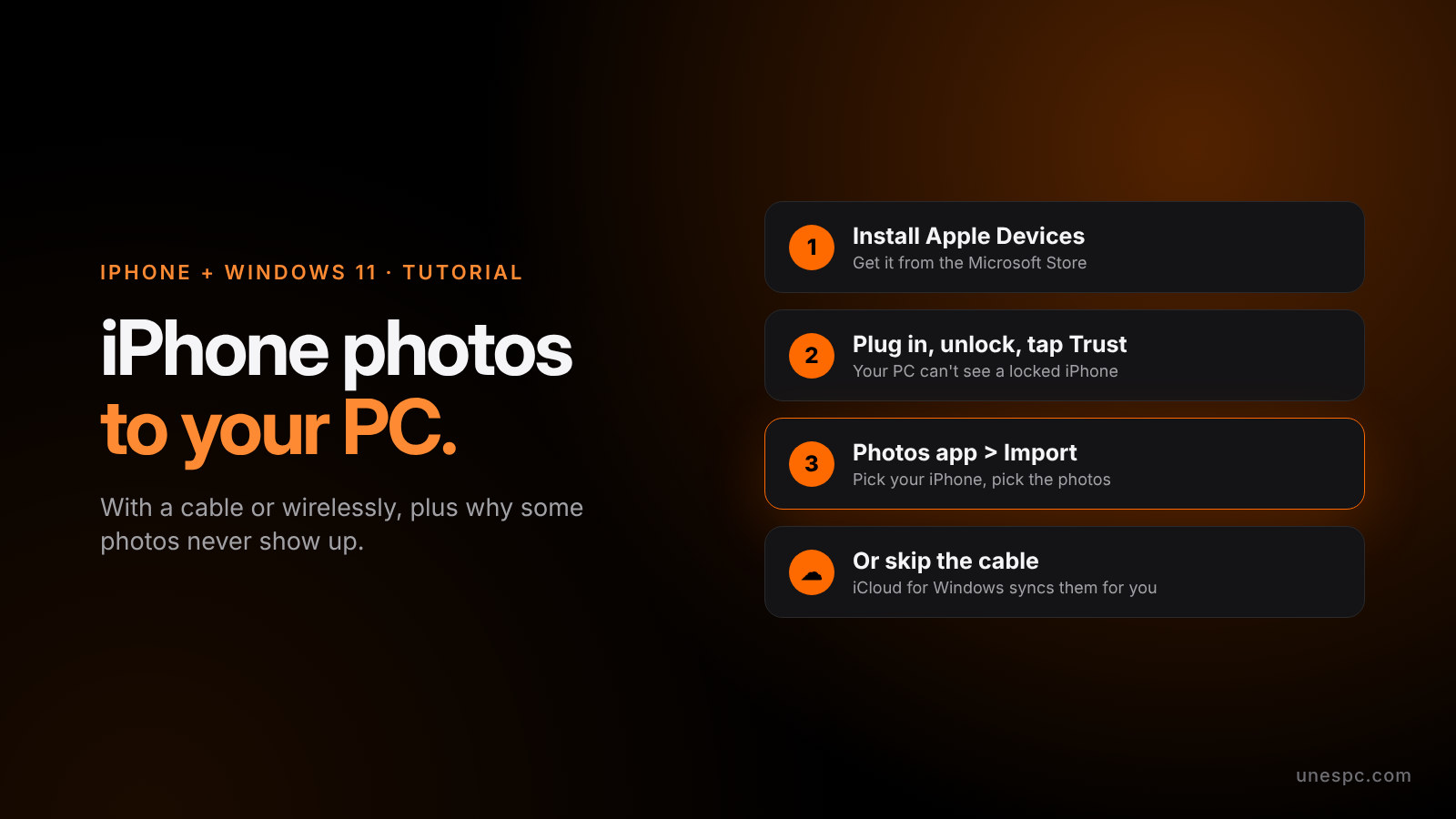
The easiest way to transfer photos from iPhone to PC is a USB cable and the Photos app that's already on Windows. Install Apple's Apple Devices app from the Microsoft Store, plug your iPhone in, enter your passcode and tap Trust, then open Photos on your PC and select Import. If you'd rather never plug in a cable again, iCloud for Windows can sync your whole library instead.
Every step below comes straight from Apple's transfer guide and Microsoft's import guide, which covers Windows 11 and Windows 10.
Which method should you use?
| Method | Cable or wireless | What you need | Best for |
|---|---|---|---|
| Photos app + USB cable | Cable | A data cable and the Apple Devices app | Dumping a big batch of photos onto your PC |
| iCloud for Windows | Wireless | iCloud Photos turned on, which uses your iCloud storage | Having every photo show up on your PC automatically |
Quick heads up before you start: Microsoft's Phone Link app can show your recent photos without a cable, but Microsoft's own guide lists that photo feature under Android phones, so it's not an iPhone option.
How to transfer photos from iPhone to PC with a USB cable
This is the one most people should use. The Photos app is already on Windows, and you get full control over what gets copied.
On your PC:
- Install the Apple Devices app from the Microsoft Store. Apple lists this as the first step for importing to a Windows PC.
On your iPhone and PC:
- Connect your iPhone to your PC with a USB cable that can transfer files. Microsoft notes that not every USB cable can, so if nothing happens, try another cable.
- Enter your iPhone's passcode so it isn't locked. Microsoft says your PC can't find the device if it's locked.
- If your iPhone asks Trust This Computer, tap Trust or Allow.
On your PC:
- Select the Start button, then open Photos.
- Select Import, then select your iPhone.
- Pick the photos and videos you want, choose where to save them, and follow the instructions.
Give it a minute to detect your phone. If you're moving thousands of photos, it'll take a while, so just let it run.
How to get iPhone photos on your PC with iCloud
If you already use iCloud Photos, this is the no-cable route. Your library just shows up on your PC.
On your PC:
- Get iCloud for Windows if you don't already have it, and sign in with the same Apple Account as your iPhone.
- Open iCloud for Windows.
- To the right of iCloud Photos, click the options button, then turn on iCloud Photos.
- Click Done.
- Open File Explorer and click iCloud Photos in the Navigation pane. If you don't see it, click Pictures, then double-click iCloud Photos.
- Double-click any thumbnail to download and view it.
Those steps come from Apple's guides on setting up iCloud Photos and viewing iCloud Photos on Windows. Your photos show up as thumbnails until you download them, so don't panic if they don't open instantly.
You can also open iCloud for Windows and click View in Microsoft Photos under iCloud Photos to see them in the Photos app. One warning from Apple: in iCloud for Windows 14.2 or later, if you move or delete a photo in Microsoft Photos, the same thing happens on all your devices with iCloud Photos turned on. So don't "clean up" on your PC unless you mean it.
The catch with this method is storage. Apple says photos in iCloud Photos use your iCloud storage, so if your library is bigger than your plan, you'll need to upgrade your storage first. And if you've ever shared photos with public iCloud links, I wrote about Apple scanning those links too.
If clicking around on the PC side is the part you hate, this is literally why I built FixKon. It can't touch your iPhone, but on the Pro and Max plans you can hold Win+Alt on your PC, say what you want in plain words, and its AI handles the Windows side for you or walks you through it on screen.
Why aren't all my iPhone photos showing up on my PC?
This is the number one complaint, and most guides skip the real reason: iCloud.
If iCloud Photos is turned on, some of your photos might live in iCloud with only a smaller version on your phone. Microsoft says you may not be able to download photos over USB if they exist on iCloud but not on your device, and Apple says you must download the original, full resolution versions to your iPhone before you import to your PC.
So you've got two fixes:
- Use the iCloud method above instead of the cable. It pulls the originals from iCloud directly.
- Get the originals onto your phone first, then import with the cable.
Other common fixes, straight from Apple and Microsoft:
- Your iPhone is locked. Enter your passcode and keep the screen on while the PC detects it.
- You missed the Trust prompt. Unplug, plug back in, enter your passcode, and tap Trust or Allow.
- Your cable can't transfer data. Some cables only charge. Try a different one.
- The Apple Devices app isn't installed. Install it from the Microsoft Store, then reconnect.
Why are my iPhone photos HEIC files on my PC?
iPhones save photos as HEIF (the files end in .heic) by default because it takes up less space. Apple explains this in its HEIF and HEVC support article, and says HEIF and HEVC "offer better compression than JPEG and H.264" while keeping the same visual quality.
When you import over USB, your iPhone might already convert them to JPEG for you. If you'd rather keep the original HEIC files, Apple says: on your iPhone, open Settings, tap Apps, tap Photos, then scroll down and tap Keep Originals.
If you want every new photo to just be a JPEG so Windows never complains, flip your camera format instead:
On your iPhone:
- Open the Settings app.
- Tap Camera, then tap Formats.
- Tap Most Compatible.
From then on, Apple says your camera captures photos in JPEG and videos in H.264. The tradeoff is bigger files on your phone, since you lose HEIF's better compression.
My take: which method would I actually use?
For a one time dump, like clearing space before a trip, the cable and the Photos app all day. No iCloud storage needed, and you pick exactly what goes where.
But if you take a ton of photos and already pay for iCloud storage, set up iCloud for Windows once and forget about it. It's the only method that also fixes the missing photos problem by itself.
The one thing I'd skip is switching to Most Compatible just because of one annoying HEIC file. Leave your camera on High Efficiency, let the import convert stuff when it needs to, and keep the space on your phone.
FAQ
How do I transfer photos from iPhone to PC without iTunes?
Use the Photos app on Windows with a USB cable. Apple's current instructions have you install the Apple Devices app from the Microsoft Store first, connect your iPhone, tap Trust, then import in Photos.
Why does my PC not see my iPhone photos?
Usually it's locked, you skipped Trust, or the cable only charges.
Can I transfer photos from iPhone to PC wirelessly?
Yes. Turn on iCloud Photos and use iCloud for Windows.
How do I stop my iPhone from saving photos as HEIC?
On your iPhone, go to Settings, then Camera, then Formats, and tap Most Compatible. New photos will be saved as JPEG.
I post quick iPhone and Windows tips like this all the time on Instagram and YouTube, and the Discord is where people help each other out. Want your PC handled for you? Grab FixKon here, and there's more on the blog.