How to Stop Apps Opening at Startup on Windows 11
By Unes (@unespc) · · 6 min read
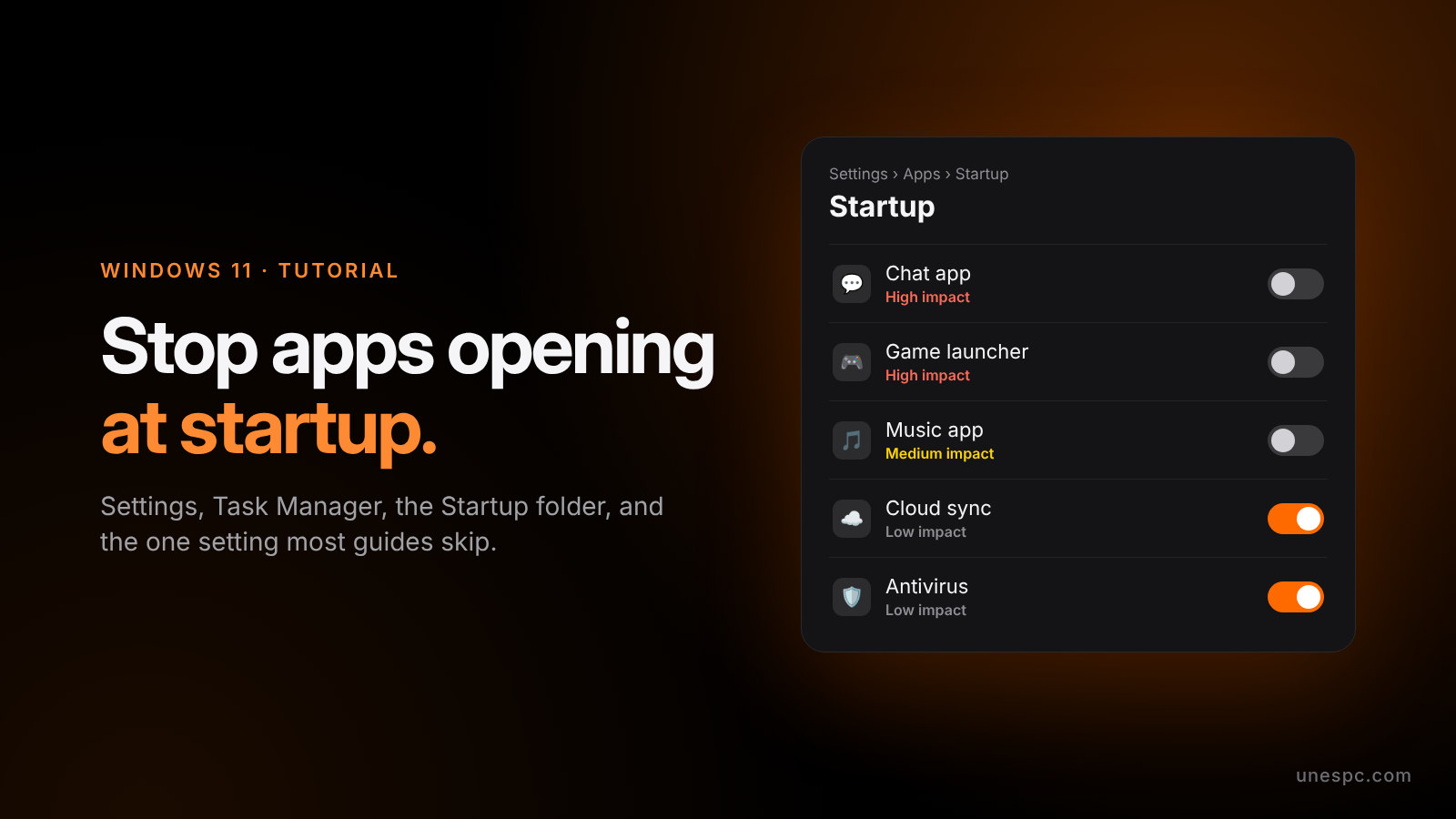
The fastest way to stop apps opening at startup on Windows 11 is Start > Settings > Apps > Startup, then flip the toggle to Off for anything you don't need the second you sign in. That's it for most apps. If an app isn't in that list, or it keeps coming back after a restart anyway, keep reading, because there are two more places Windows hides this stuff.
Every one of these steps comes from Microsoft's own startup apps guide, which covers Windows 11 and Windows 10.
Which method should you use?
| Method | Where | Free? | Best for |
|---|---|---|---|
| Settings | Settings > Apps > Startup | Yes, built in | Quick on and off toggles |
| Task Manager | Task Manager > Startup apps tab | Yes, built in | Seeing which apps slow your boot the most |
| Startup folder | shell:startup in the Run box | Yes, built in | Apps that don't show up in the other two lists |
| Autoruns | Microsoft Sysinternals download | Yes, free | Power users who want to see literally everything |
Settings and Task Manager show the exact same list, so you only need one. Microsoft says they present it slightly differently: Task Manager is the more detailed view.
How to stop apps opening at startup on Windows 11 in Settings
On your PC:
- Select Start, then Settings.
- Go to Apps, then Startup.
- Find the app you don't want launching with Windows.
- Set its toggle to Off.
That's genuinely it. The toggle stops the app from starting automatically when you sign in, and you can flip it back to On anytime. Some apps also have a little chevron next to them with advanced options.
How to disable startup apps in Task Manager
This is the one I'd actually use, because it tells you which apps are the real problem.
On your PC:
- Right-click Start and select Task Manager.
- Select the Startup apps tab.
- Select the app you want to stop.
- Select Disable.
The good part is the impact column, and most guides never explain what it means. Microsoft spells it out on the same support page: High impact means the app uses more than 1 second of CPU time or more than 3 megabytes of disk at startup. Low impact is under 300 milliseconds of CPU and under 292 kilobytes of disk. Medium sits in between, and Not measured just means Windows has no data yet.
So start with the High impact stuff. Game launchers, chat apps and updaters love sitting in that column for no reason.
How to remove apps from the Windows 11 Startup folder
Some apps aren't registered with Windows as startup tasks, so they never show up in Settings or Task Manager. Those usually live in the Startup folder, and Microsoft's guide covers it too.
On your PC:
- Right-click Start and select Run.
- Type
shell:startupand press Enter. - A File Explorer window opens with shortcuts to apps that launch when you sign in.
- Delete the shortcut for any app you don't want starting automatically.
That folder is just for your account. There's a second one for every user on the PC, which you open by typing shell:common startup instead. Deleting a shortcut there only removes the shortcut, not the app.
What about apps that still launch after all that?
For the really stubborn ones, Microsoft has a free tool called Autoruns, part of Sysinternals. Microsoft says it has "the most comprehensive knowledge of auto-starting locations of any startup monitor," and it lists everything: startup folder items, registry Run keys, auto-start services and a lot more. Its Hide Signed Microsoft Entries option filters out Windows' own entries so you only see third-party apps.
Big warning though: Autoruns shows things Windows actually needs. If you don't know what an entry is, leave it alone. It came up in my Reddit roundup on PC optimizers for the same reason: people love it, and people also break things with it.
And honestly, check the app itself too. Lots of apps have their own "launch at startup" or "open on login" option in their settings, and if that's on, some of them just add themselves back after an update.
If clicking through all of this sounds like a lot, it's literally why I built FixKon. The free version has a Startup Manager that lists every startup app with an impact rating so you can switch them off in one place. On the Pro and Max plans you can also hold Win+Alt and just tell its AI something like "turn off the apps that slow down my startup," and it does it on your screen.
Why do apps reopen after a restart on Windows 11?
This is the gap almost every guide skips, and it confuses a ton of people. Sometimes the app isn't a startup app at all. Windows has a separate sign-in setting that saves apps you had open when you shut down and reopens them when you sign back in.
According to guides from Pureinfotech and ElevenForum, here's where it lives:
- Open Settings.
- Go to Accounts, then Sign-in options.
- Scroll down to Additional settings.
- Turn off the toggle about automatically saving your restartable apps and restarting them when you sign back in.
I couldn't find this setting on Microsoft's own support pages, and the exact wording can differ a bit between Windows 11 updates, so look for a toggle with "restart" and "apps" in the name.
Why isn't my startup app turning off?
A few common reasons:
- It's in a different place. If it's not in Settings or Task Manager, check the Startup folder (
shell:startup), then Autoruns. - The app re-enables itself. Turn off its own launch at startup option in the app's settings, not just in Windows.
- It's reopening, not starting. If the app comes back with your last window exactly where you left it, that's the sign-in restart setting above, not a startup entry.
- You see "We couldn't find this app." Microsoft says this usually means the app was uninstalled or lives on a removable or network drive that isn't connected. Selecting the icon next to the toggle shows you the broken path, and reinstalling the app can fix it.
My take: which method would I actually use?
Task Manager, every time. The Settings toggle does the same job, but the impact rating is what tells you where your boot time is actually going, and it's nice that Microsoft actually documents what High and Low mean. Then I'd check shell:startup once, since stuff hides there. I'd only open Autoruns if something keeps coming back.
The part people get wrong is assuming every app opening after a restart is a startup app. Half the time it's the sign-in setting. Fix both and your desktop should be quiet when you log in.
FAQ
Is it safe to disable all startup apps on Windows 11?
Mostly, yes. Turning off a startup app only stops it from launching automatically, and you can still open it yourself. Leave your antivirus and anything for your hardware drivers alone unless you know what they do.
How do I find the Startup folder on Windows 11?
Right-click Start, select Run, type shell:startup and press Enter. For the folder that applies to every user on the PC, type shell:common startup instead.
Does disabling startup apps make Windows 11 boot faster?
It can. Microsoft's Task Manager rates High impact apps as ones using more than 1 second of CPU or more than 3 MB of disk at startup, so turning those off is where you'll notice it most.
Why do my apps reopen after I restart Windows 11?
That's usually the sign-in setting that restarts apps you had open, not a startup entry. Turn it off in Settings under Accounts, then Sign-in options, then Additional settings.
I post quick Windows fixes like this all the time on Instagram and YouTube, and the Discord is where people share what actually worked for them. Want your PC handled for you? Grab FixKon here, and there's more where this came from on the blog.